
Humans and Orcs use the same controls. Select your race in skirmish setup or an online room. Orc equivalents: Worker → Peon, Swordsman → Warrior, Archer → Hunter, Knight → Raider; Castle → Stronghold, Farm → Pig Farm, Archery Range → Hunters Camp, Stable → Warg Pen, Blacksmith → Forge, Arcane Tower → Spirit Tower. Barracks and Scouts keep their names. All listed hotkeys apply to either race.

CONTROLS & PRACTICAL PLAY

Your hands.
Your whole army.

Mouse and keyboard, touch, or controller: learn how to select, command, build, train, and find your way around. Start with the controller walkthrough if the buttons feel confusing.

Find your controls. This guide uses the default bindings. If you remap a button, follow your in-game settings. The game labels controller buttons A / B / X / Y. On a differently labeled pad, follow the physical positions below and the in-game bindings.
01 / GET READY

Choose how you play.

Current update: easier selection and progress on every control scheme

With Workers or friendly buildings selected, nearby gold deposits share a yellow rectangle and nearby trees share a green rectangle. The box includes gaps between nodes and brightens under your pointer. Controller X or mouse right-click inside the box sends selected Workers to gather from that patch. Set a Castle rally inside it to send new Workers gathering automatically.

The shared Production panel beneath resources shows active unit training, building construction, and research on mouse and keyboard, touch, and controller, even with your army selected and without opening Queue. Entries show progress, remaining work time, waiting reasons, and additional queued units. Use its page arrows for more active buildings. Click or tap an entry to select and center its building; on controller, aim the pointer at the entry and press A. Open Queue to cancel a job.

Gathering boxes follow explored resource patches. Hidden patches are not revealed, and visible depleted resources stop accepting gathering orders. An explicit Move command still moves; use the context order for gathering.

Mouse + keys

Choose Mouse + keys on the main menu for classic left-click selection, right-click orders, hotkeys, and edge scrolling.

Touch

Choose Touch for a compact command dock and gestures. Play in landscape with space to tap the battlefield.

Controller

Connect your pad, choose Controller on the main menu, then release held buttons before continuing. Use A to confirm menu choices.
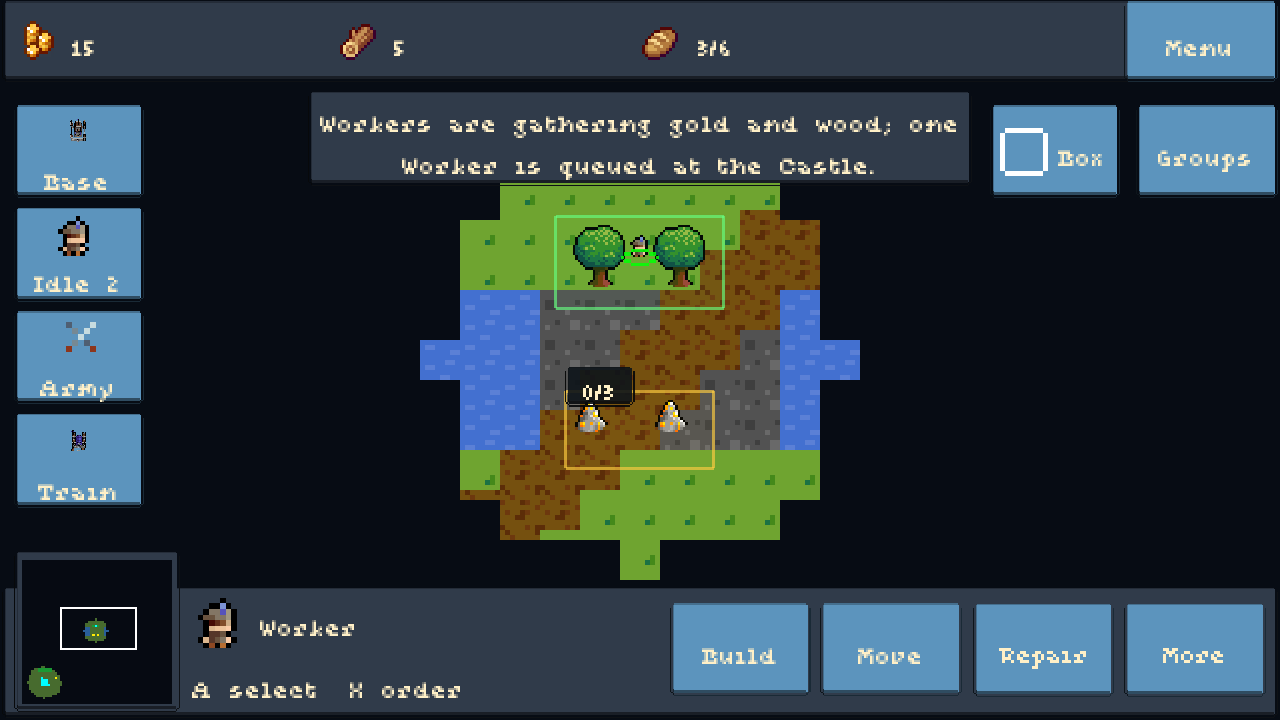
Green shared rectangle around trees and yellow shared rectangle around gold deposits
Choose the patch, not the individual node. Select Workers and order inside a box. For a Castle rally, select the Castle and target the same box. On touch, tap the box to gather, or use Rally before tapping it.
Production stays visible

Follow active training, construction, and research under the resources while you command your army.

Progress bars and waiting reasons explain what is happening. Page arrows reveal additional active buildings.

Find the building from its progress entry. Click or tap an entry, or aim at it and press controller A, to select and center the building. Open Queue for cancellation actions.

Switch during a match through Menu → Controls, or compact More → Controls. Switching clears pending modes and compact toggles. Preferences are saved locally. Desktop action keys are changed through Menu → Bindings; controller actions are changed in Controls.

HUD / ALL CONTROL SCHEMES

See the work. See the route.

Production without selecting a building

The panel beneath resources lists active training, construction, and research. It shows progress, remaining work time, waiting reasons, and extra queued units. Click or tap an entry, or aim at it and press controller A, to select and center its building. Use the page buttons for more active buildings.

A timer measures remaining work, not a promise: missing supply, a missing builder, or a blocked exit can delay completion.

Green move marker

An accepted move command flashes a green sprite reticle matching the shape of the red attack marker. Use it to confirm the destination you chose before moving the camera.

Numbered movement flags

Queue a route with Shift + order, controller RB + order, or touch More → Queue orders. Selected units with multiple orders show connected waypoints: the first uses the rally flag and later waypoints use amber double pennants. Shift-click a resource after ordering a build and the same flags point at that gold or wood, yellow or green, so you can see the Worker will gather when construction finishes.

Flags remain after releasing Shift or RB, and clear as orders finish or are replaced. A building rally controls newly trained units; these waypoints show the queue of existing units.

02 / CONTROLLER FIRST

Select who. Then tell them where.

The first four things to learn

Left stick moves the camera. Right stick moves the pointer. A selects a unit. X orders your selected units at the pointer. If you remember these, you can already select a Worker and send it to a resource.

Select any button to see its role. “Click” means press a stick down, not tilt it.

A · bottom face button

Select / confirm

On the battlefield, select the entity under the pointer. In a menu, activate the highlighted action. With a targeting command armed, confirm its destination. During building placement, commit the building at the pointer. During box selection, mark the first corner, then press again to finish the box.

Read every button ↓

One controller, three contexts

On the battlefield

Sticks move the view and pointer. A selects or confirms a pending target; X issues an order. Tap D-pad Up / Left / Right and release for their single or global selection shortcuts. Hold for 0.4 seconds to select on-screen Workers / army / Barracks instead; a hold selects once and keeps the camera in place. Down cycles Castles on press.

In a command wheel or panel

LB opens the wheel. Point with the right stick, or step through actions with the D-pad. A activates the highlighted action; B or LB closes the panel. In list panels, Up / Left goes backward and Down / Right goes forward. Next and Previous reach additional pages.

In main and pause menus

Use the D-pad or left stick to follow the visible rows and columns, then A to activate. On the title screen, Right from Play Skirmish reaches Tutorial; Down reaches Online. More focuses its first option, and Back returns focus to More. B uses an available Back, Done, or Resume action. The right stick is not the navigation stick here.

Panels take priority over battlefield shortcuts. Close a panel before trying to select an idle Worker, zoom, or open the pause menu. Opening a wheel does not itself pause the match; online matches also continue while their menu is open.

03 / EVERY BUTTON

The complete controller reference.

These are the default physical positions. The four face buttons are bottom A, right B, left X, and top Y. LB / RB are the upper shoulder bumpers; LT / RT are the triggers beneath them. View / Select and Menu / Start are the two center buttons. Stick clicks are separate from stick movement.

Left stickMove the camera
Tilt the left stick to pan your view across the battlefield. This moves the camera, not your selected units. In main and pause menus, the left stick moves between buttons.
Right stickMove the pointer
Tilt the right stick to position the cursor over a unit, resource, enemy, or destination. In a command wheel, point toward an action. In list panels, it changes the highlighted button; on the tactical map, it moves the map cursor.
A · bottom face buttonSelect / confirm
On the battlefield, select the entity under the pointer. In a menu, activate the highlighted action. With a targeting command armed, confirm its destination. During building placement, commit the building at the pointer. During box selection, mark the first corner, then press again to finish the box.
X · left face buttonGive a context order
With units selected, order at the pointer: ground means Move, an enemy means Attack, and resources mean Gather for Workers. Friendly unfinished or damaged buildings mean Continue build or Repair for Workers. A friendly unit means Follow. With only friendly buildings selected, set their rally point. X also confirms an armed target command, but does not confirm building placement or work while box selection is active.
Y · top face buttonPrepare Attack-Move
With military units selected, press Y to enter Attack-Move targeting. Move the pointer to the destination, then press A or X. The army fights visible enemies on the way and continues afterward. Point at an enemy to issue a direct attack instead. Y alone does not send units anywhere; it has no shortcut effect with only Workers selected.
B · right face buttonBack / cancel / clear
Close an open command or tactical panel first. On the battlefield, cancel targeting, placement, or box selection. With none of those active, clear your selection. In main and pause menus, use the available Back, Done, or Resume button. Back closes a panel; it does not necessarily undo an armed command, so press B again if targeting remains active.
LB · left bumperOpen the command wheel
Press and release LB to open actions for the active selection. Choose with the right stick or D-pad, then confirm with A. Press LB again or B to close a panel. This is a toggle, not a wheel you must keep holding open.
RB · right bumperAdd selection / queue orders
Hold RB while pressing A on friendly entities to add them to your selection; an already selected friendly entity is removed. Hold RB when finishing a selection box to add its units. Hold RB while issuing an order to append it after existing orders instead of replacing them. Release RB for ordinary selection and replacement orders.
LT · left triggerZoom out
Hold the left trigger to show more of the battlefield. The farther you press it, the stronger its zoom contribution. Zoom stops at the allowed limit. Triggers affect the battlefield view, not menu navigation.
RT · right triggerZoom in
Hold the right trigger to see units and placement more closely. If both triggers are pressed equally, their zoom contributions cancel. Zoom in for precise selection, and zoom out before choosing a route.
Click left stick · LS / L3Toggle box selection
Press the stick straight down like a button; tilting it only pans. After clicking LS, use the right stick to place the pointer at one corner, press A, move the pointer to the opposite corner, and press A again. The box selects your units, not buildings. Click LS again or press B to abandon the box.
Click right stick · RS / R3Center on the selection
Click the stick to center the camera on the active selected entity. Tilting it moves the pointer instead. In a mixed selection, this centers on the active entity, not the average position of the whole army. With no selection it does nothing.
View / SelectOpen the tactical map
Open the large map for camera jumps, explicit command destinations, control groups, camera bookmarks, and zoom buttons. Move the map cursor with the right stick; use the D-pad to choose an action, then A to apply it.
Menu / StartOpen / close the pause menu
On the battlefield, toggle the menu and cancel pending targeting or placement. Close any command or tactical panel with B first: panels handle controller input before the battlefield does. For reliable resuming, highlight Resume and press A in the pause menu.
D-pad ↑Find a Worker / hold for screen Workers
Tap to select and center on an idle Worker; repeated taps cycle through idle Workers. If none are idle, select the friendly Worker nearest the pointer. Hold for 0.4 seconds to select all your living Workers on the current screen without moving the camera. Taps activate on release.
D-pad ↓Select and find a Castle
Cycle through your living Castles, selecting one and centering the camera. Use LB → Train to train a Worker. This is a selection shortcut, not a movement command for the army.
D-pad ←Select army / hold for screen army
Tap and release to select all your living military units across the map, excluding Workers. Hold for 0.4 seconds to select only your military units on the current screen. Neither action moves the camera; click RS afterward to center on the active unit.
D-pad →Find a Barracks / hold for screen Barracks
Tap and release to cycle through your living Barracks, selecting one and centering the camera. Hold for 0.4 seconds to select all your Barracks on the current screen without moving the camera. Use LB → Train for Swordsmen, Archers, or Knights. Archery Range and Stable unlock units; military units are trained at Barracks.
Remapping and sensitivity

Open Controls to cycle the ten named button actions: Select, Order, AttackMove, Cancel, Commands, Append, Box, Center, Tactical, and Menu. Assigning a button already in use swaps the conflicting action. Reset pad bindings restores defaults. Sticks, triggers, and D-pad shortcuts are separate fixed controls.

Cursor speed defaults to 480; its button cycles through values from 240 to 720. Lower it if you overshoot small targets. Stick dead zone defaults to 0.18; raise it if camera or pointer drift appears. Controls panels have multiple pages, so use Next to reach all bindings. After remapping, follow the action’s new button rather than the default letter printed here.

04 / PRACTICE WITH A PAD

Do it once. Then build the habit.

Choose Play Skirmish → Practice for an opponent that does nothing: no gathering, building, training, movement, or attacks. The opening selector is disabled in Practice. Choose Tutorial for guided lessons instead. Keep default bindings while learning, and pause between exercises if you need time to read.

EXERCISE 01

Navigate the title screen

  1. Choose Controller and release held buttons.
  2. Focus Play Skirmish. Press Right to reach Tutorial, or Down to reach Online.
  3. Use Left / Right within a row and Up / Down between rows. Press A to activate.
  4. Open More for its extra options. Press B on that page to return with More focused.

The D-pad and left stick follow the visible button layout. The right stick moves the battlefield pointer instead.

EXERCISE 02

Select only what is on this screen

  1. Frame the Workers, army, or Barracks you want with the left stick and triggers.
  2. Hold D-pad Up for Workers, Left for military units, or Right for Barracks for 0.4 seconds.
  3. Release the D-pad. Your camera stays in place and the shortcut selects once.
  4. Issue an order or open LB for the selected group.

Short taps activate on release: Up cycles idle Workers, falling back to the Worker nearest the cursor; Left selects the entire army across the map; Right cycles and centers a Barracks. Holds replace your selection with living friendly entities in the current viewport.

EXERCISE 03

Select, then move

  1. Aim at one of your units with the right stick and press A.
  2. Aim at open ground with the right stick.
  3. Press X. The selected unit travels there. Use the left stick if the destination is off screen.

A chooses who; X tells them what to do. Moving either stick alone never orders your units.

EXERCISE 04

Select a whole squad

  1. Click LS to turn on box selection.
  2. Move the pointer to a corner outside the squad and press A once.
  3. Move the pointer diagonally past the squad; a selection rectangle appears.
  4. Press A again to finish. Hold RB on this final press to add to your current selection.

Use two separate A presses. You do not hold A and drag as you would with a mouse.

EXERCISE 05

Attack safely along a route

  1. Select your military units with A, a box, a group, or D-pad ←.
  2. Press Y; the HUD should show AttackMove targeting.
  3. Aim at ground along the route and press A or X.
  4. To focus one visible enemy instead, aim at that enemy when confirming.

Use Attack-Move for advancing into uncertain ground. Use Move when travel is the priority, such as retreating.

EXERCISE 06

Put a Worker back to work

  1. Press D-pad ↑ to find an idle Worker, or select a specific Worker with A.
  2. Move the pointer inside the highlighted gold or tree rectangle. Each nearby resource patch shares a target area, including the gaps between its nodes.
  3. Press X to gather from that patch. For a specific command, LB → Move chooses movement rather than the context action.

The same highlighted rectangles accept resource rally points from a selected Castle. On mouse and keyboard, right-click inside a rectangle to gather or set the rally; you do not have to hit an individual tree or deposit.

EXERCISE 07

Build a Farm or another structure

  1. Select one to four of your Workers with A. A box or a control group works.
  2. Press LB, choose Build, and press A. Choose the building in the next wheel and press A.
  3. A building preview appears. Move it with the right stick; pan with the left stick and zoom with the triggers as needed.
  4. Check the placement feedback. Green indicates valid terrain; red and the message explain a problem.
  5. Press A to commit the site. Every selected Worker starts building it. B cancels. X does not place a building.

Workers are the only units that construct, and up to four can build the same building together. Selecting them before you place starts the whole crew at once; you do not have to place with one Worker and then order the others to help. A site in fog can be ordered as if it were open. The ghost does not turn red to reveal hidden ground. The Worker walks there, and the building is cancelled with a full refund if that ground cannot hold it. Invalid placement on visible ground spends nothing. Keep placing is a separate persistent option; holding RB queues the job but does not enable repeated placement by itself.

EXERCISE 08

Train units and research

  1. Press D-pad ↓ for a Castle, or D-pad → for a Barracks. Select a Blacksmith with the pointer for upgrades.
  2. Press LB. Choose Train → Worker at the Castle, or Train → the military unit at the Barracks.
  3. At a Blacksmith, choose Research → Hearts or Damage.
  4. For another job, reopen the wheel and repeat. To cancel, use LB → Queue and select the cancellation entry.

The shared Production panel below resources shows training, construction, and research without selecting a building. Read progress, remaining work time, waiting reasons, and the additional queued-unit count. Aim at an entry and press A to select and center its building; aim at page arrows and press A to see more active jobs. If training fails, check resources, supply, prerequisites, or the five-job queue limit.

EXERCISE 09

Set a rally point

  1. Select a friendly production building.
  2. Aim at ground and press X to set its rally destination.
  3. For distant targeting, choose LB → Rally, then open View, move the map cursor, choose Target here with the D-pad, and press A.
  4. For newly trained Workers to gather, aim the Castle rally at a known resource.

A normal map jump changes only the camera. Arm Rally first if you want the tactical map to set the rally destination.

EXERCISE 10

Queue a route without erasing orders

  1. Select units and issue their first order normally.
  2. Hold RB while issuing each later order with X or confirming a target with A.
  3. Release RB when finished. To change plans immediately, issue the replacement order without RB.

Selected units show connected, numbered flags. The first uses the rally flag; later waypoints use amber double pennants. A Shift or RB order onto gold or wood after a build shows the same kind of flag at that resource, yellow for gold and green for wood. Flags remain after releasing RB and clear as orders complete or are replaced. More → Queue orders is an alternative toggle that stays on. If orders seem delayed, check that toggle and release RB.

EXERCISE 11

Save and recall a control group

  1. Select the units or buildings you want to save.
  2. Open View → Groups, or LB → More → Groups.
  3. Select a Group slot first. Navigate Next / Previous to reach more slots and actions.
  4. Choose Replace to save the selection. Later choose that slot and Recall, or Center to recall and find it.

Add to merges membership. Exclusive assigns the selected entities and removes them from other groups. Group 1 initially contains your starting Castle; Replace can overwrite it.

EXERCISE 12

Jump across the map and save a view

  1. Press View to open the tactical map.
  2. Move the map cursor with the right stick. Keep Jump here highlighted, then press A to move the camera.
  3. For bookmarks, choose Cameras / Zoom, then Save camera 1–4.
  4. Return through Cameras / Zoom and choose Camera 1–4 to restore a saved position.

In the map panel the right stick moves the map cursor; the D-pad moves action focus. Bookmarks save positions, not zoom levels or selections.

05 / TOUCH & MOBILE

Tap to act. Drag to look.

On a phone, launching the game fills the screen and turns the match sideways so the battlefield fits. Friendly taps select; with units selected, ground, resource and enemy taps issue orders. When you want an unambiguous action, choose it from the dock first and then tap its target.

Production panel
Below resources, follow active training, construction, and research without selecting a building. Tap an entry to select and center its building; use the page buttons for additional active jobs.
Tap a friendly entity
Select it. Double-tap the same friendly entity quickly to select its type on screen. When several entities overlap, a target chooser lets you pick precisely.
Tap ground / enemy / resource
With your units selected, issue a context order: Move / Attack / Gather. Friendly unfinished or damaged buildings can receive Worker build or repair orders. Tapping a friendly unit normally selects it; use More → Follow for an explicit follow order.
One-finger drag
Pan the camera. Ordinary dragging does not select a box.
Two fingers / pinch
Drag with two fingers to pan; spread to zoom in and pinch together to zoom out. Begin on the battlefield, away from HUD buttons. This gesture cancels box selection.
Box, then drag
Tap Box, then drag a rectangle around your units. The box completes on release. More → Add selection lets you add instead of replacing. Buildings are excluded.
Minimap tap / drag
Jump or move the camera around the map. With an explicit target command armed, a minimap tap chooses its destination instead.
Base / Idle / Army / Train
Base cycles Castles and centers on one. Idle cycles idle Workers and centers on one. Army selects all military units. Train cycles Barracks and centers on one.
Build / Move / Attack / Repair / Stop
The bottom dock changes with the selection. Build opens a building chooser; Move, Attack and Repair require a target tap. Stop acts immediately. More exposes additional actions.
Barracks Rally
Tap Train, or tap the Barracks. Rally is a command button in the bottom-right row, between Knight and More. Tap Rally, then tap the destination. On a Castle, Rally is the third bottom-right button, after Worker and Scout.
Building preview → Place
Select a Worker → Build → a structure. Tap ground to reposition the preview or drag near the preview to move it. Drag elsewhere to pan. Tap Place to commit; tapping ground alone never buys a building. Keep stays in placement after success; Cancel leaves placement.
More → Queue orders / Add selection
These are independent persistent toggles. Queue orders appends commands. Add selection adds friendly entities; selecting an already selected friendly entity removes it. Turn them off when you want normal behavior.
Groups / Map / Cameras / Queue
Groups saves and recalls squads. Map gives Jump here or Target here depending on your command mode. Cameras saves four positions and offers zoom buttons. Queue lists cancellable training, research, or construction jobs for the active building.
Landscape
On the website, launching the game fills the screen and turns the match sideways into landscape. Exit leaves that view. A local match still pauses if the battlefield itself is portrait.
Menu / Cancel / Back
Menu opens the pause menu. Cancel exits targeting or placement. Back closes a panel. A local match pauses in portrait, but an online match continues.
A short touch practice run

Tap Idle → tap a tree to start gathering. Tap Base → Worker to add a Worker. Select a Worker → Build → Farm → tap clear ground → Place. Tap Army → Attack → tap a destination to advance with Attack-Move. Use More to access Hold, Patrol, Follow, Continue build, Controls, and the persistent toggles.

For a Barracks rally, tap Train or the building. Rally is a command button in the bottom-right row, between Knight and More, beside Swordsman and Archer. Tap Rally, then tap the destination. For a Castle, Rally is the third button in that same row. Arm Rally before the destination tap; a plain tap on empty ground leaves the rally where it is.

06 / MOUSE & KEYBOARD

Classic RTS, one shortcut at a time.

Left-click selects; right-click orders. Drag with the left button to box-select friendly units. Shift-click adds or removes friendly entities; Shift-drag adds units. Ctrl-click or a quick double-click selects the same friendly type on screen. Clicking empty ground clears the selection unless Shift is held.

Left click / drag
Select an entity / box-select friendly units.
Shift + selection
Modify the current selection.
Double click a unit
Select friendly units of the same type in the viewport.
Right click
Context order: move, attack, gather, resume construction, or repair. With a friendly building selected, set its rally point.
Shift + order
Append an order instead of replacing existing orders (up to 32 queued orders). Selected units show connected, numbered flags. Later waypoints use amber double pennants. Shift-click gold or wood after a build order and the same flags point at that resource, so a Worker queued to gather after construction is visible. Gold markers are yellow and wood markers are green.
A, then click
Attack-Move: fight visible enemies en route, then resume travel.
M, then click
Move without automatically stopping to acquire enemies.
S
Stop the current order.
H
Hold Position: attack within range without chasing.
P, then click
Set a patrol destination.
B
Open the Worker build menu.
Build menu: Q / W / E / A / S / D / Z
Place Castle / Farm / Barracks / Archery Range / Stable / Blacksmith / Arcane Tower. Select 1–4 Workers first: every selected Worker starts that building together. Cooperative construction is unique to Workers.
R, then click
Order a Worker to repair or help construct a friendly building (up to four Workers).
C
Return carried resources.
Y, then click
Explicit rally targeting; accepts left or right click.
Escape
Cancel placement or targeting.
Castle: Q / W
Train a Worker / Scout.
Barracks: Q / W / E
Train a Swordsman / Archer / Knight.
Blacksmith: Q / W
Research health / damage.
Tab / Shift + Tab
Cycle the active unit or building type within a mixed selection.
F1 / Ctrl + F1
Cycle an idle Worker / select all idle Workers.
F2
Select the army.
Backspace
Cycle the camera through completed friendly Castles.
Arrow keys / screen edges
Pan the camera. Edge scrolling can be disabled.
Middle-mouse drag / mouse wheel
Drag the camera / zoom.
Ctrl + F5–F8 / F5–F8
Save / recall four camera positions.

Escape first cancels targeting, placement, or the build menu. With no pending mode, it toggles the pause menu. Right-click also cancels building placement, the build menu, or a non-rally target command; use left-click to confirm that explicit command on desktop. Shift-place keeps the building preview active and queues the Worker’s job.

Groups and camera bookmarks

Ctrl + 1–9
Replace a control group with the current friendly selection. Group 1 starts with your Castle; you can overwrite it.
1–9 / double-tap number
Recall a group / recall and center on its active entity.
Shift + 1–9
Add the current friendly selection to an existing group.
Alt + 1–9
Assign exclusively: save the selection to this group and remove those members from other groups.
Ctrl + F5–F8 / F5–F8
Save / recall four camera positions. These do not save your selection or zoom.
Minimap left click / drag
Jump / move the camera. With an explicit target command armed, left-click the minimap to target it.
Minimap right click
Issue a context order there, or set a selected friendly building’s rally.
Keys depend on your selection

W trains a Worker at a Castle, an Archer at a Barracks, or damage research at a Blacksmith. The build menu uses its own C / F / B / A / S / K choices. Close it before trying combat keys. The camera uses arrows rather than WASD.

07 / WHAT ACTIONS MEAN

Choose the command you actually need.

Move
Travel to a destination without stopping to acquire enemies along the route. A green sprite reticle confirms acceptance. Use for retreats and repositioning.
Attack / Attack-Move
Attack a chosen visible enemy, or move to ground while engaging visible enemies en route. In the compact dock, Attack arms Attack-Move targeting.
Stop
Cancel current orders. Military units may then acquire nearby visible enemies while idle. Stop is not the same as Hold.
Hold
Stay in position and attack enemies within range without chasing. Reach it through More or the military command wheel.
Patrol
Choose a destination for a back-and-forth patrol. Useful for watching a route; avoid sending patrols into areas you cannot afford to contest.
Follow
Track a friendly unit with a follow order. Desktop context orders on a friendly unit can do this; touch offers explicit Follow in More.
Repair / Continue build
Workers are the only units that construct or repair. Select one to four Workers and place a building to start them all together, or right-click an unfinished site to join it. Up to four Workers can work the same building. Each Worker on site adds construction speed or repairs up to one heart per second for free.
Cargo / Return cargo
Return carried resources to a reachable completed friendly Castle. A yellow animated circle beneath a Worker means it is carrying a resource. The circle disappears on delivery; income is credited on deposit, not when the Worker picks it up.
Arcane Tower
Build with a Worker using B then Z, after completing a Barracks. Costs 15 gold / 4 wood, takes 15 seconds with one Worker, and defends automatically. A hit knocks the unit a short distance. Repair it with Workers; it cannot train or rally units.
Rally
Set where new units go after spawning. A Castle resource rally sends new Workers to gather. It does not move units you already trained.
Selection / Info / Visible type / Next subgroup
Selection offers removal of individual members, All idle Workers, Box selection, Clear selection, and Center selection. Visible type selects the active type on screen. Next subgroup changes the active type within the current selection. Enemy inspection does not grant control.
Queue / Cancel job / Cancel site
A production Queue panel lists jobs, unlike the Queue orders toggle for unit movement. Canceled training and research refund their cost; a canceled construction site refunds 75%, rounded down.
Clear / Center / Keep
Clear removes the selection; Center finds its active entity; Keep keeps building placement active after a successful placement. Each has a separate purpose.

Only friendly entities accept your commands. Gathering, construction, and repair apply to Workers in a mixed selection. Selecting an enemy lets you inspect what is visible, not command it. Hidden enemies cannot be selected as live targets.

Watching a match

In spectator mode, desktop Space opens pause, Tab cycles spectator speed, and 1 / 2 focus the blue / red Castle. On controller, D-pad Up / Down focus those teams and Right cycles speed. Touch quick buttons become team and speed shortcuts. Spectators can inspect and move the camera, but cannot issue player orders.

08 / TIPS & TRICKS

Fewer missed clicks. Better decisions.

Read the yellow cargo circle

Workers carrying gold or wood show a looping yellow base effect beneath their feet. It clears when they deliver their cargo, so you can distinguish returning gatherers from empty Workers.

Bring a construction crew

Workers can build together, which other units cannot do. Select one to four Workers and place the building: all of them start construction immediately. You can also right-click an unfinished building, or use Repair and target the site, to send more help. Up to four Workers total can work one building. Each extra Worker adds 25% of the single-Worker build rate, so four on site build at 1.75 times that rate, and they are not gathering while they work.

Start with an inactive opponent

Choose Practice difficulty in Play Skirmish to learn without bot pressure. The opponent does not gather, build, train, move, or attack. Bot openings are disabled in Practice. Tutorial remains a separate guided option.

Tap for global shortcuts, hold for the current screen

Hold D-pad Up, Left, or Right for 0.4 seconds to select on-screen Workers, army, or Barracks. This preserves your camera view and avoids pulling remote squads into an order. Short taps activate when released.

Watch production while commanding your army

The Production panel follows active training, construction, and research across all control schemes. Read blocked or waiting status before assuming a queue is progressing; a full progress bar can still wait for a free exit.

Read the mode before pressing a button

The dock tells you whether you are selecting, targeting, queueing, or placing. A confirms different things in those modes. If you lose track, close the panel with B, then cancel the pending mode with B again.

Build a repeatable controller rhythm

Try D-pad ↑ → X on a resource, D-pad ↓ → LB → Train, then your army group → Y → A on a route. Practice each sequence slowly in a skirmish before combining them.

Separate camera movement from unit movement

The left stick, minimap and camera bookmarks change what you see. They do not send a squad anywhere. Select units first, then issue an order at the destination.

Keep squads separate

Tapping D-pad Left selects All Army, including raiders, scouts, and defenders. Hold Left to limit the selection to your current screen. Save groups for your main force, production, and a mobile squad. Use Add to to bring reinforcements into a saved group.

Use precise selection in crowds

Zoom in, move the cursor closer, or use the overlap chooser. Selection → Remove entries and Visible type can clean up a mixed selection. Box selection intentionally leaves buildings out.

Prepare supply before the queue stalls

Farms provide capacity only when completed. Check supply before adding training jobs, leave room around production exits, and protect the Worker constructing your next Farm.

Make reinforcements useful immediately

Rally a Castle onto a resource and rally Barracks behind the fighting line. A rally is a destination for future units; it is not an automatic Attack-Move order.

Spend less time crossing the map

Save camera positions at home, an expansion, and an important route. Group Center finds a saved squad; camera bookmarks find a place even when no squad is there.

Scout before committing

Start with your fast, non-attacking Scout. Train more at the Castle with W for 2 gold and 1 supply; use 8-cell vision to reveal routes without risking a builder. Orders and targeting respect fog and visibility. A remembered building silhouette is old information. Check routes and expansion resources before sending your whole army or a vulnerable builder.

Preserve units and Workers

Military units regenerate after a period out of combat; buildings need Worker repair. Retreat with Move when you want to leave quickly. Hold can stop a defensive line from chasing out of position.

Check persistent toggles when input feels wrong

Queue orders can make a new command wait behind old jobs. Add selection can keep unexpectedly accumulating units. Keep can leave another building preview active. Turn each off deliberately after using it.

For unit stats, repair and economy rules, read the game guide. For step-by-step openings and budgets, use build orders.

09 / WHEN SOMETHING FEELS WRONG

Find the missing step.

“I move the sticks, but my units do not move.”

The sticks control camera and cursor. Select a friendly unit with A, aim at ground, then press X.

“Y did nothing.”

Select military units first. Y prepares Attack-Move; A or X at a destination actually issues it. Workers do not get the Y shortcut.

“A keeps selecting instead of attacking.”

In normal mode A selects. Press X on an enemy for a context attack, or Y first and then A to confirm an attack destination.

“I cannot select a group by dragging.”

On controller, click LS, then use two A presses for the two box corners. On touch, tap Box before dragging. Mouse mode uses a normal left-button drag.

“The command wheel is open but my camera will not move.”

The wheel owns controller input. Select an action with the right stick or D-pad and A, or close it with B / LB to return to camera control.

“The wheel chooses the wrong action.”

Use the D-pad for one-step changes, release it between presses, and inspect the highlighted label before A. The right stick chooses by direction in a wheel, not by moving a mouse cursor.

“The map moved my camera instead of ordering units.”

Jump here is a camera action. Arm Move, Attack-Move, Patrol, or Rally before opening the map; then use Target here.

“X will not place the building.”

Use A on controller, Place on touch, or left-click on desktop. Make sure the preview is valid and read the placement reason.

“The next command waits or selection keeps growing.”

Release RB and check More → Queue orders and Add selection. These toggles persist until turned off or the control profile resets.

“D-pad Up cannot find an idle Worker.”

If none are idle, a short tap selects the friendly Worker nearest your pointer. Hold Up for 0.4 seconds to select every friendly Worker on the current screen. If there are no Workers, the HUD reports that.

“My D-pad tap feels delayed.”

Up, Left, and Right wait for release to distinguish a short tap from a 0.4-second hold. A hold selects the matching entities on screen once; releasing afterward does not also trigger the tap action.

“The camera or cursor drifts.”

Raise the stick dead zone in Controls. If targeting feels too fast, lower cursor speed. Release held buttons after connecting or switching input mode.

“My controller disconnected.”

The recovery panel offers Touch, Mouse + keys, or Reconnect / Back. Reconnect and release all buttons before resuming. Local matches pause on pad loss; online matches continue.

“I opened Menu but the opponent kept playing.”

Online menus and connection recovery do not freeze the shared match. Local skirmishes pause. Close the menu when ready to continue issuing orders.

BUILT WITH HEART. KEPT GOING BY YOU.

Love the game?
Help it grow.

Play for free. If you would like to give a little back, there is a place for that too.

Why Simple RTS? →